How to Translate a Manga Chapter in Batch (ZIP, CBZ & Multi-Image)
Learn how to translate a manga chapter in order using multi-image upload or ZIP/CBZ archives, preview exact page credits before starting, edit bubbles, and export a single ZIP.
To translate a manga chapter without uploading one page at a time, drop up to 1,000 JPEG, PNG, or WebP images—or a .zip / .cbz archive up to 200 MB—into AI Manga Translator. Your browser unpacks archives locally in natural page order, shows exact credits before charging, runs OCR and translation in the background, and exports the finished chapter as one ZIP.
This guide covers file preparation, step-by-step batch upload, tall webtoon credit rules, and page review before you translate a manga chapter.
Prepare Your Files Before You Translate a Manga Chapter
Clean file structure prevents ordering mistakes when you translate a manga chapter:
- Use supported formats: JPEG, PNG, and WebP up to 20 MB per image (max 20 MP, longest edge 12,000 px).
- Keep numeric filenames consistent: Natural sorting orders
1.png,2.png,10.pngaccurately, and zero-padded names (001.png,002.png) stay aligned in every comic reader. - Upload ZIP or CBZ directly: Drop a
.zipor.cbzarchive (up to 200 MB) to translate a manga chapter without unzipping first. Your browser extracts valid images locally and skips metadata files. - Split large volumes: If a tankobon volume exceeds 200 MB or 1,000 pages, split it into chapter archives before you translate a manga chapter.
| Batch spec | Live limit on AI Manga Translator | Details |
|---|---|---|
| Multi-image upload | Up to 1,000 images per task | JPEG, PNG, or WebP, max 20 MB each |
| Archive upload | ZIP or CBZ up to 200 MB | Unpacked locally in natural filename order |
| Standard page cost | 1 credit per standard page | Confirmed upfront before deducting credits |
| Tall strip cost | ceil(height / (5 × width)) credits (max 8) |
Automatic vertical slicing keeps text sharp |
| History & export | 30-day private /settings/history |
Download individual PNGs or one chapter ZIP |
Step-by-Step: How to Translate a Manga Chapter in Batch
Use the Translate Manga ZIP & CBZ workspace to translate a manga chapter in five steps:
- Drop images or a ZIP/CBZ archive. Select a chapter folder or comic archive. The browser verifies image dimensions and natural page order locally.
- Choose source and target languages. Leave
Auto-detecton for Japanese manga, Korean manhwa, or Chinese manhua, or lock one source language to translate a manga chapter consistently into English or Simplified Chinese. - Confirm the exact credit total. Review total images, billable pages, and exact credits before clicking Translate. Nothing is deducted until you confirm.
- Let translation finish in the background. After upload finishes and the batch queues, you can close the tab while the server finishes processing.
- Review pages and export a ZIP. Open the batch in your history studio to edit any bubble for free, run Select Missed Text (2 free repairs per page), and click Download ZIP to save every page with its original filename.
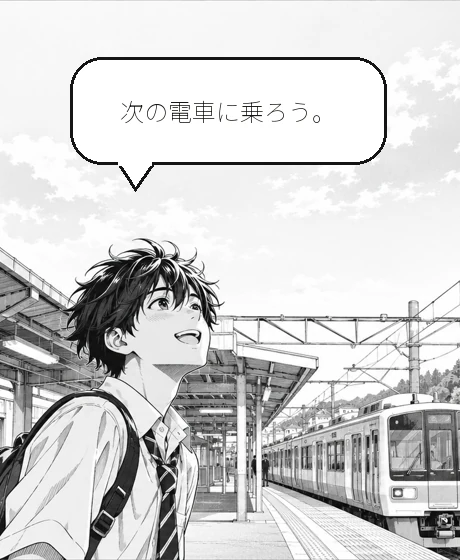
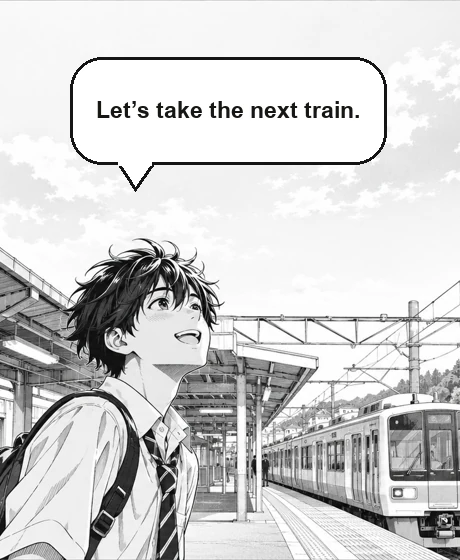
Credits, Tall Webtoon Strips, and Failed Pages
When you translate a manga chapter, pricing follows simple per-page rules:
- Standard pages: Height up to 5× width = 1 credit.
- Long webtoon strips: Strips taller than 5× width slice vertically (e.g., 5×–10× = 2 credits) so small dialogue stays crisp. For vertical manhwa workflows, visit Manhwa & Webtoon Translator.
- Auto-refunds: Any page that hits a terminal error refunds its credit automatically.
- No subscriptions required: Sign-up includes free starter credits; one-time packs cost $5 (120 pages), $20 (1,000 pages), or $99 (6,000 pages) and never expire. See Pricing.
Ready to translate a manga chapter in one go? Drop a ZIP/CBZ archive or image folder, verify exact credits upfront, and download a clean ZIP. Open ZIP & CBZ Manga Translator
Frequently Asked Questions
Can I close the tab while I translate a manga chapter?
Yes. Once upload completes and the batch is queued, processing continues on the server. Return anytime within 30 days in your private history to review and download your chapter.
Does AI Manga Translator keep pages in order when I translate a manga chapter?
Yes. ZIP and CBZ entries sort in natural numeric order (1.png, 2.png, 10.png) and keep their original filenames in the exported ZIP.
What files work inside a ZIP or CBZ to translate a manga chapter?
JPEG, PNG, and WebP images are extracted automatically. Metadata like ComicInfo.xml or __MACOSX folders is skipped; encrypted or nested archives are rejected.
Can I edit bubbles before downloading after I translate a manga chapter?
Yes. Click any bubble in your batch history to edit text for free or use Select Missed Text (2 free repairs per page); all edits appear in your PNG and ZIP exports.
What if I only need one screenshot instead of a full chapter?
Paste directly on Manga Image Translator or read our guide to translating manga screenshots.