How to Translate Manga Screenshots Without Losing Speech Bubbles
Learn how to translate manga screenshots in your browser, capture cleaner crops on desktop or phone, fix missed dialogue with region repair, and export full-resolution PNGs.
To translate manga screenshots cleanly in a web browser, paste or upload a clear JPEG, PNG, or WebP capture into AI Manga Translator, confirm the source and target language, and download the finished PNG with translated dialogue fitted back inside each speech bubble. No software install, Python setup, or local GPU is required.
This guide shows how to capture cleaner images before you translate manga screenshots, run translation on desktop or mobile, fix missed bubbles without redoing the page, and check live file limits and pricing.
Capture Rules Before You Translate Manga Screenshots
OCR quality depends on the capture itself. Most errors when users translate manga screenshots come from blurry thumbnails, cropped balloons, or heavy chat compression.
- Keep every speech bubble complete. Cutting off a balloon edge clips vertical strokes and punctuation.
- Capture at native display resolution. Avoid upscaling small previews so narrow kanji and furigana stay legible when you translate manga screenshots.
- Prefer PNG or sharp WebP. Heavy JPEG compression creates noise around black text on screentone.
- Crop out floating reader menus. Remove toolbars or status bars that overlap dialogue before you translate manga screenshots.
| Capture factor | Best for clean OCR | Avoid |
|---|---|---|
| Format | PNG, WebP, or sharp JPEG (up to 20 MB) | Re-compressed chat forwards |
| Resolution | Native reader width, crisp strokes | Blurry thumbnails |
| Framing | Complete bubbles with margin | Cropped edges or overlapping UI |
| Orientation | Standard pages or tall strips | Skewed phone camera photos |
Step-by-Step: Translate Manga Screenshots in Your Browser
You can translate manga screenshots on Windows, macOS, iPhone, or Android inside Manga Image Translator:
- Paste or upload your capture. On desktop, press
Ctrl+V(Cmd+Von Mac) to paste straight from your clipboard. On phone, pick files from your photo library or open Mobile Manga Translator to translate manga screenshots on iOS or Android. - Pick source and target languages. Leave source on
Auto-detectfor Japanese manga, Korean manhwa, or Chinese manhua, or choose manually. Select English or Simplified Chinese—for Japanese-to-English pages, you can also start on Translate Manga to English. - Confirm credits and start. AI Manga Translator displays exact page credits before charging. One standard screenshot costs 1 credit; tall strips taller than 5× their width are sliced and counted as
ceil(height / (5 × width)). - Compare Original and Translated views. Desktop displays both side by side; mobile toggles between
OriginalandTranslatedso you can verify speakers when you translate manga screenshots. - Download full-resolution PNGs. Export immediately or revisit your private 30-day history anytime.
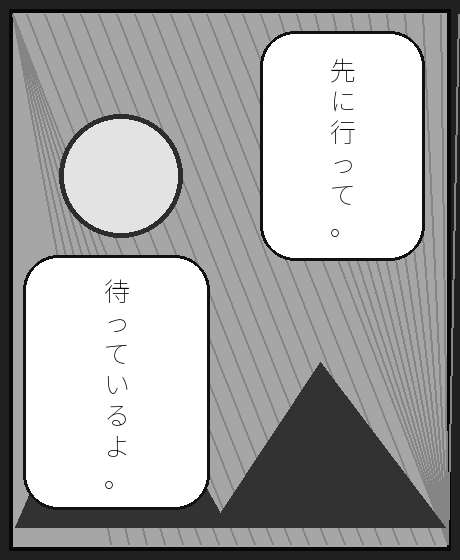
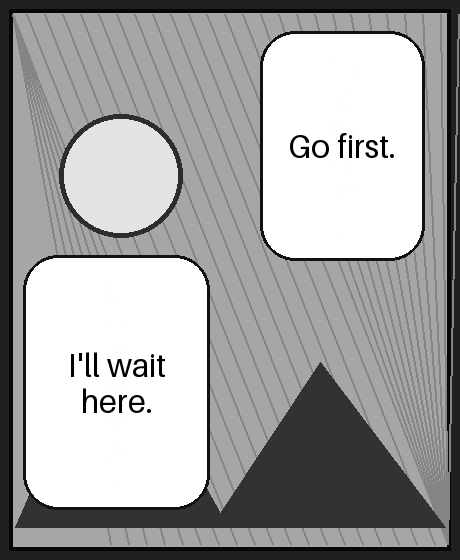
Fix Missed Bubbles When You Translate Manga Screenshots
Dense pages can include tiny whispers or hand-lettered asides that automatic OCR skips. When you translate manga screenshots with missed lines, you never have to pay twice:
- Edit any detected bubble for free. Click the bubble to check the original text, adjust wording, or restore original panel art.
- Run Select Missed Text. Drag a tight box around skipped dialogue to OCR and translate only that region. Every page includes 2 free region repairs.
Limits, Privacy, and Pricing to Translate Manga Screenshots
- File limits: JPEG, PNG, and WebP up to 20 MB each (max 20 MP, longest edge 12,000 px).
- Privacy: Uploads stay private to your account, never enter a public gallery, and source files auto-delete after 30 days.
- Pricing: Sign-up includes free starter credits. One-time packs cost $5 (120 pages), $20 (1,000 pages), and $99 (6,000 pages)—credits never expire and failed pages auto-refund. See Pricing.
Ready to translate manga screenshots now? Paste a capture or test the built-in interactive sample in your browser. Open Manga Image Translator
Frequently Asked Questions
Can I translate manga screenshots straight from my clipboard?
Yes. Copy any screenshot on desktop and press Ctrl+V or Cmd+V on Manga Image Translator to load and translate manga screenshots without saving a file first.
Why did OCR skip a small bubble when I translate manga screenshots?
Tiny font sizes, grey text on dark screentones, or tilted sound effects outside balloons can be missed automatically. Draw a box with Select Missed Text—each page includes 2 free repairs, and bubble edits are always free.
Can I translate manga screenshots on iPhone or Android?
Yes. You can translate manga screenshots in mobile Safari or Chrome with no app install, toggle Original and Translated views, edit text, and save PNGs to your phone.
What if I need to translate dozens of screenshots from one chapter?
Select up to 1,000 images at once or upload a ZIP/CBZ archive. See our guide on how to translate a manga chapter for batch sorting and ZIP export.
Are uploaded screenshots public or stored permanently?
No. Your files remain private to your account and stored source images are automatically deleted after 30 days.